
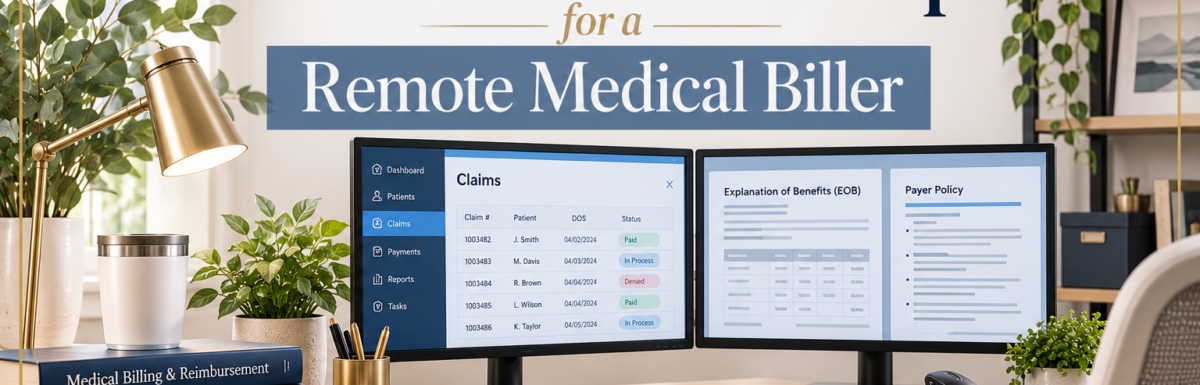
Working from home as a medical biller has plenty of advantages, but your workspace can make a real difference in how comfortably and efficiently you get through the day. Between reviewing claims, navigating billing software, checking patient accounts, and referencing insurance guidelines, you need a setup that supports focused work without creating unnecessary strain.
The best desk setup for a remote medical biller doesn’t have to be expensive. A few well-chosen pieces of equipment can make it easier to manage multiple applications, protect confidential information, and stay comfortable during long billing sessions.
Whether you’re an experienced medical biller, a newly certified professional, or someone building a home-based medical billing business, here’s what to consider when setting up your workspace.
What Do You Need for a Remote Medical Billing Desk Setup?
A functional home office for medical billing should prioritize three things: efficiency, ergonomics, and privacy.
Here’s a quick overview of the essentials.
| Equipment | Why it matters |
|---|---|
| Dual monitors | Makes it easier to work between billing software, payer portals, and reference materials. |
| Privacy screen filter | Helps limit what people can see on your computer screen from the side. |
| Adjustable desk | Allows you to change working positions throughout the day. |
| Ergonomic mouse | Supports comfortable navigation during repetitive computer work. |
| Supportive office chair | Helps you maintain a comfortable seated position. |
| Medical billing reference books | Provides access to coding, reimbursement, and billing guidance when needed. |
| Reliable internet and headset | Supports secure remote access and work-related calls. |
| Organized storage | Keeps work materials accessible while helping protect confidential information. |
You don’t need to purchase everything at once. Start with the equipment that solves your biggest daily frustrations, then upgrade as your workload and budget allow.
1. Dual Monitors: One of the Most Useful Upgrades
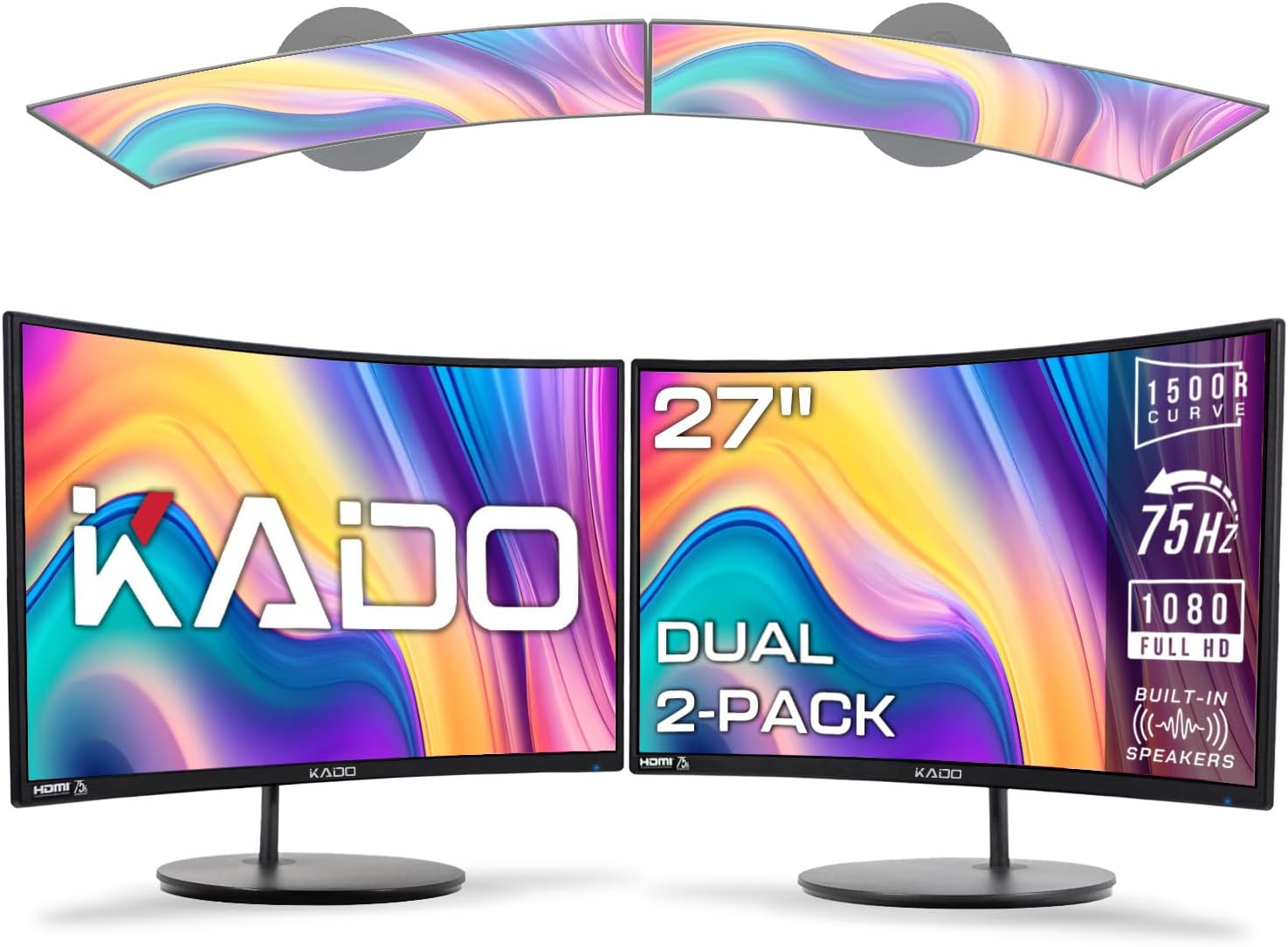
If there’s one equipment upgrade I’d prioritize for a remote medical biller, it’s dual monitors.
Medical billing often requires you to move between several systems. You might be reviewing a claim in your practice management software, checking an explanation of benefits (EOB), verifying information in a payer portal, and consulting a reference document.
Switching repeatedly between windows slows that process down and makes it easier to lose your place.
How dual monitors improve your workflow
With two monitors, you can arrange your workspace around the tasks you perform most often.
For example:
- Monitor one: Keep your billing software or practice management system open.
- Monitor two: Display the insurance payer portal, EOB, fee schedule, or reference document you need for the current task.
If you work denials, you might keep the claim details on one screen and the denial information or payer policy on the other. If you’re posting payments, you can view the account and supporting remittance information without constantly minimizing windows.
The ideal arrangement depends on your workflow and the software you use.
What monitors should you buy?
For most home-based medical billing work, two 24-inch monitors are a reasonable starting point. A pair of 27-inch monitors may be more comfortable if you regularly work with large spreadsheets or multiple windows.
Look for:
- A resolution that keeps text sharp and easy to read.
- Adjustable height or VESA mounting compatibility.
- HDMI or DisplayPort connections compatible with your computer.
- An anti-glare screen if you work in a bright room.
- A stand or mount that lets you position the displays comfortably.
You don’t necessarily need expensive gaming monitors or premium displays. Reliable business monitors with clear text and adjustable positioning are usually a better use of your budget.
Setup tip: Position the monitors next to each other, with the primary screen directly in front of you. If you use both equally, center the gap between them. Keep the screens close enough that you aren’t repeatedly turning your head to see important details.
Before purchasing, confirm that your computer supports two external displays. Some laptops require a compatible dock or adapter, and not every USB-C port supports video output.
2. A Privacy Screen Filter for Confidential Billing Work
Medical billers regularly handle sensitive information, including patient names, dates of birth, insurance details, claim information, and payment records.
When you’re working remotely, protecting that information is part of setting up a responsible workspace.
A privacy screen filter is a useful addition, especially if your desk is near a window, a shared living space, or an area where other people might walk behind you.
How a privacy screen works
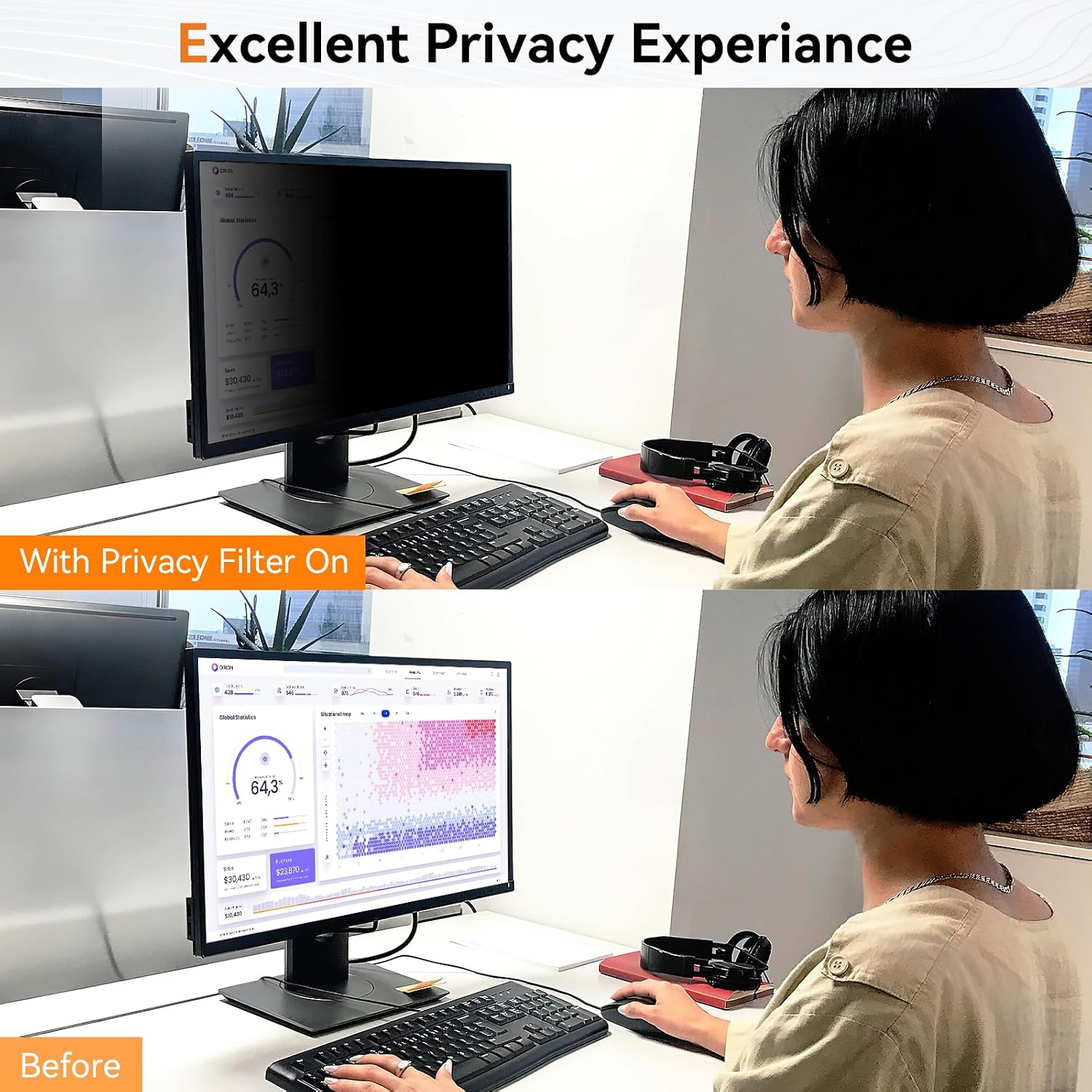
A privacy filter attaches to your monitor and narrows the viewing angle. Someone sitting directly in front of the screen can generally see the display, while someone viewing it from the side may see a much darker image.
Privacy filters are available for standard monitors and laptops. Some attach with adhesive strips or tabs, while others use a removable frame or magnetic mounting system.
Before ordering one, check the following:
- Exact screen size: Measure the display itself rather than relying only on the monitor’s advertised size.
- Aspect ratio: Confirm whether your screen is 16:9, 16:10, or another format.
- Mounting style: Choose an attachment method that works with your monitor.
- Image clarity: Read reviews about brightness, glare, and readability.
Does a privacy screen make your home office HIPAA compliant?
No. A privacy screen is one possible safeguard, not a guarantee of HIPAA compliance.
Your employer or billing clients may have specific requirements for working with protected health information (PHI). These may include approved devices, secure remote access, access controls, screen-lock policies, and restrictions on where work can be performed.
Other practical safeguards include:
- Locking your computer whenever you step away.
- Positioning your desk so visitors cannot easily view patient information.
- Using only approved software, devices, and remote-access tools.
- Keeping printed patient information secured when not in use.
- Following your employer’s or client’s privacy and security policies.
If you’re an independent medical biller, discuss security expectations with each client before accessing their systems or handling patient information.
3. An Adjustable Desk for a More Flexible Workday
Medical billing can involve long periods of sitting while you review claims, reconcile payments, or work through an account backlog.
An adjustable desk gives you the option to alternate between sitting and standing rather than remaining in one position all day.
Should you buy a standing desk?
An adjustable desk is worth considering if you spend several hours a day at your computer and want more flexibility in how you work.
You don’t have to stand all day to benefit from one. In fact, standing continuously can be uncomfortable, too. The goal is to have options and change positions when it feels appropriate.
You have two main choices:
Electric standing desk: Adjusts with a motor, usually through buttons or preset height controls. It’s convenient if you expect to change positions frequently, but it generally costs more.
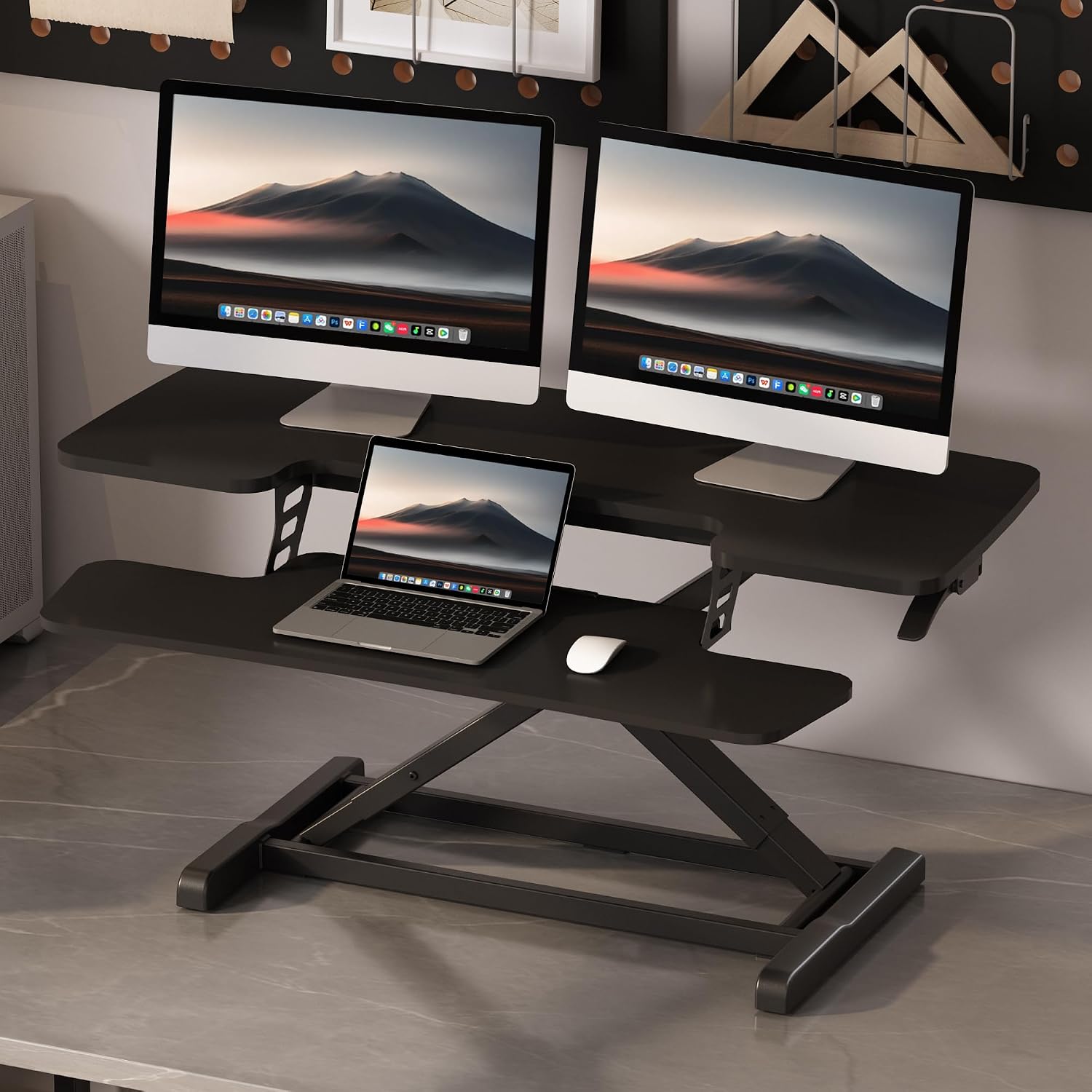
Manual standing desk or desk converter: A more budget-friendly option that allows you to raise your work surface without replacing your existing desk. Some converters sit directly on top of a regular desk.
What to look for in an adjustable desk
Consider these features before buying:
- Enough surface area for two monitors, a keyboard, and a mouse.
- A height range that works for both sitting and standing.
- Stability when the desk is raised.
- Adequate weight capacity for your equipment.
- Cable management that keeps cords organized.
- A frame or converter that fits your available office space.
Remember that your entire workstation needs to adjust comfortably. If your monitors are too low when you stand, you may need monitor arms or adjustable stands.
For a limited budget, a desk converter may be a sensible first step. You can upgrade to a full electric standing desk later if you find that you use the standing position regularly. Versadesk is a popular brand, but I’ve had several Flexispot desk converters over the years. They’re a more affordable option. My current one is big enough for two screens and it’s spring system makes it easy to raise and lower.
4. An Ergonomic Mouse for Repetitive Computer Work
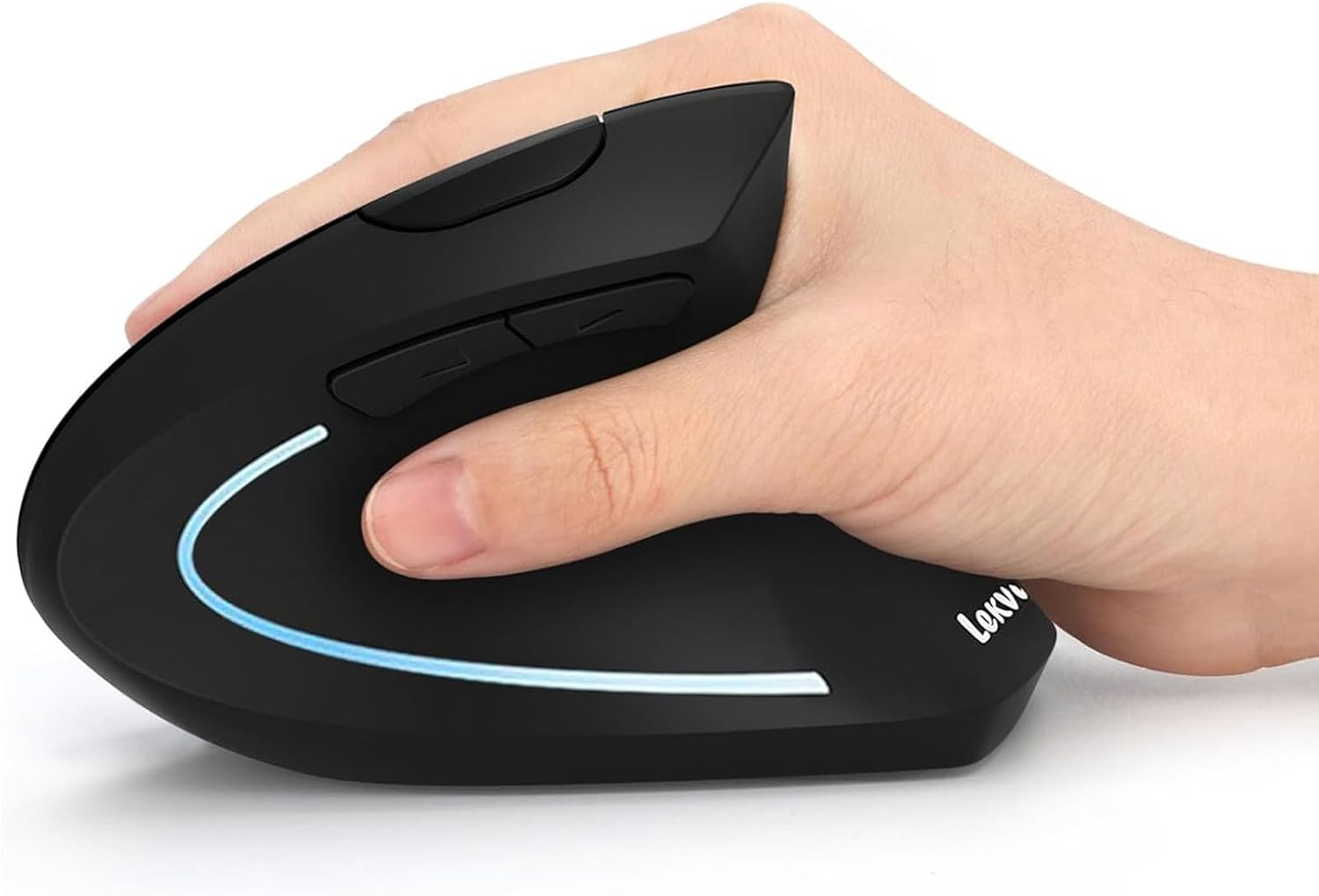
Medical billing requires a surprising amount of repetitive mouse use. You may spend hours opening accounts, selecting claim fields, navigating payer portals, and moving between applications.
A comfortable mouse can make those tasks easier.
The best ergonomic mouse depends on your hand size, grip, and working habits. There isn’t one design that’s ideal for everyone.
Types of ergonomic mice
Traditional ergonomic mouse
These mice are shaped to fit the hand more naturally than a flat or undersized mouse. They’re a straightforward option if you want something familiar without a major adjustment period.
Vertical mouse
A vertical mouse positions your hand at a more upright angle. Some people find this position more comfortable than a traditional mouse, although it may take time to get used to the movement.
Trackball mouse
A trackball stays in place while you move a ball with your thumb or fingers to control the pointer. It can be useful if you have limited desk space or prefer not to move your entire hand across the desk.
Features worth considering
Look for a mouse that offers:
- A comfortable fit for your hand.
- Smooth pointer movement.
- Convenient buttons for everyday navigation.
- Wired or wireless connectivity that works with your computer.
- A size and shape that don’t force your wrist into an uncomfortable position.
You may also want to consider a mouse pad with a comfortable surface. A wrist rest can be useful for some people, but it shouldn’t force your wrist into an awkward position or interfere with natural movement.
My recommendation: This year, I started experiencing a lot of forearm pain over the course a day. After a lot of research, I settled on a vertical mouse. It’s been great! If possible, try an ergonomic mouse before committing to an expensive model. Comfort is personal, and a popular design isn’t necessarily the best fit for your hand.
5. Medical Billing Books and Reference Materials

Even experienced medical billers occasionally need to look something up. A well-organized reference library can be useful when you’re learning a new specialty, studying for a certification, or reviewing a billing concept.
The most useful books depend on the type of medical billing you do. Someone working primarily with mental health claims may need different references from a biller working with surgical or hospital claims.
Which medical billing books are worth having?
Rather than buying every available reference book, start with the materials most relevant to your work.
Medical billing and reimbursement textbooks
A comprehensive medical billing textbook can help you review the claims process, insurance terminology, reimbursement methods, coordination of benefits, and common billing scenarios.
Look for a current edition if you’re purchasing a textbook for professional development or certification study.
Medical terminology and anatomy references
These resources can be useful when you need to understand unfamiliar terminology in documentation or billing materials. Their importance depends on your specialty and responsibilities.
CPT and ICD-10-CM coding references
If your role includes coding or researching diagnosis and procedure codes, current coding references may be useful. Make sure you select the appropriate editions for your work and follow any licensing or access requirements.
Not every medical biller needs a full set of coding manuals. If your role is limited to claim submission, payment posting, and accounts receivable, your employer’s software and approved reference resources may cover much of what you need.
Specialty-specific billing resources
If you work with mental health practices, prioritize resources that explain the billing workflows relevant to behavioral health, including payer requirements, common claim issues, and reimbursement terminology.
For current payer policies and code requirements, use authoritative, up-to-date sources rather than relying solely on a printed book. Reference books can become outdated as coding guidance, payer policies, and billing requirements change.
Do you need physical books or digital references?
Digital references can be easier to search and keep updated. Physical books may be more comfortable when you’re studying or want to read without adding another window to your screen.
A practical approach is to keep a small collection of essential references and use approved online resources for current information.
You can also maintain a digital reference folder with frequently used payer resources, workflow instructions, and notes. Store it only in an approved location, especially if the folder contains client-specific information.
6. A Supportive Office Chair and Proper Monitor Position
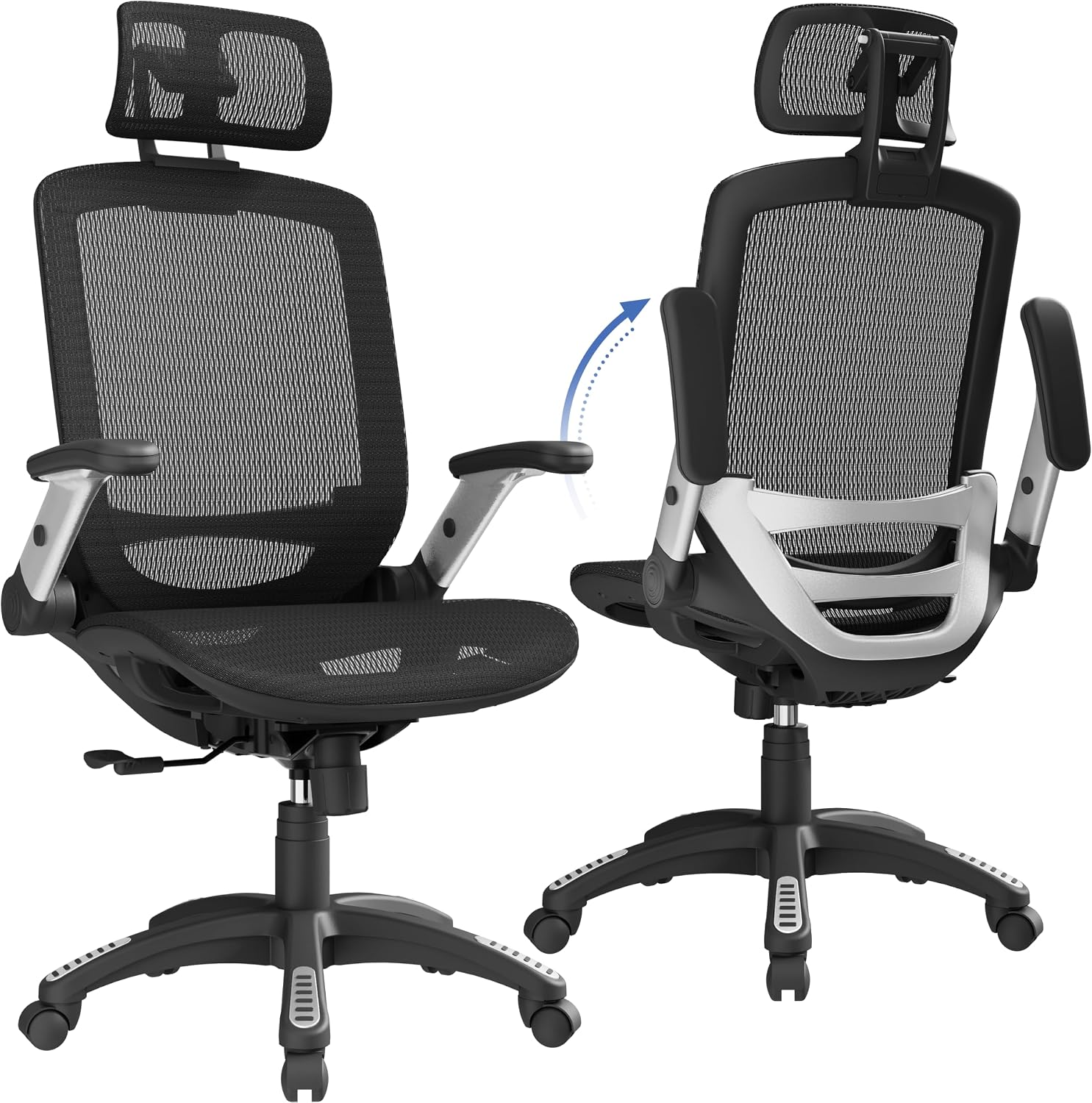
Your desk and monitors matter, but don’t overlook your chair.
If you’re working a full day from home, a chair that fits your body and allows you to adjust your position can be more valuable than an expensive desk accessory.
Look for a chair with:
- Adjustable seat height.
- Adequate back support.
- A seat depth that allows you to sit comfortably.
- Armrests that don’t interfere with your desk.
- A stable base and smooth movement.
When seated, aim to keep your feet supported, your shoulders relaxed, and your elbows near your sides. Position your keyboard and mouse close enough that you don’t have to reach forward repeatedly.
Your monitor should be at a comfortable viewing distance, with the top of the screen around eye level or slightly below for many users. Adjust this to your own comfort and visual needs.
The point isn’t to maintain one rigid posture all day. A well-designed workspace makes it easier to work comfortably and change positions when needed.
7. Reliable Internet, a Headset, and Other Small Essentials
Some home office purchases aren’t particularly exciting, but they can make a noticeable difference in your daily workflow.
Reliable internet connection
Medical billing software, electronic health record systems, and payer portals may require a stable internet connection.
If your work frequently involves remote desktop access or web-based billing systems, reliability matters more than having the fastest internet package available.
A wired Ethernet connection may be worth considering if your connection is unreliable and your workspace allows it.
A comfortable headset
If you participate in work meetings or make insurance-related calls, a comfortable headset can keep your hands free and reduce background noise.
Choose one that works with your computer or phone and meets your employer’s requirements. If you handle confidential conversations, make sure others in your home cannot easily overhear them.
A keyboard and monitor stands
A separate keyboard is particularly useful when you’re working on a laptop with external monitors. It allows you to position the laptop or monitors at a comfortable height without forcing your hands into an awkward typing position.
Monitor stands or adjustable monitor arms can also free up desk space and make it easier to align your screens.
Cable management and desk organization
You don’t need a picture-perfect office, but keeping your most-used equipment organized makes it easier to settle into work.
A few inexpensive additions may help:
- A cable tray or clips.
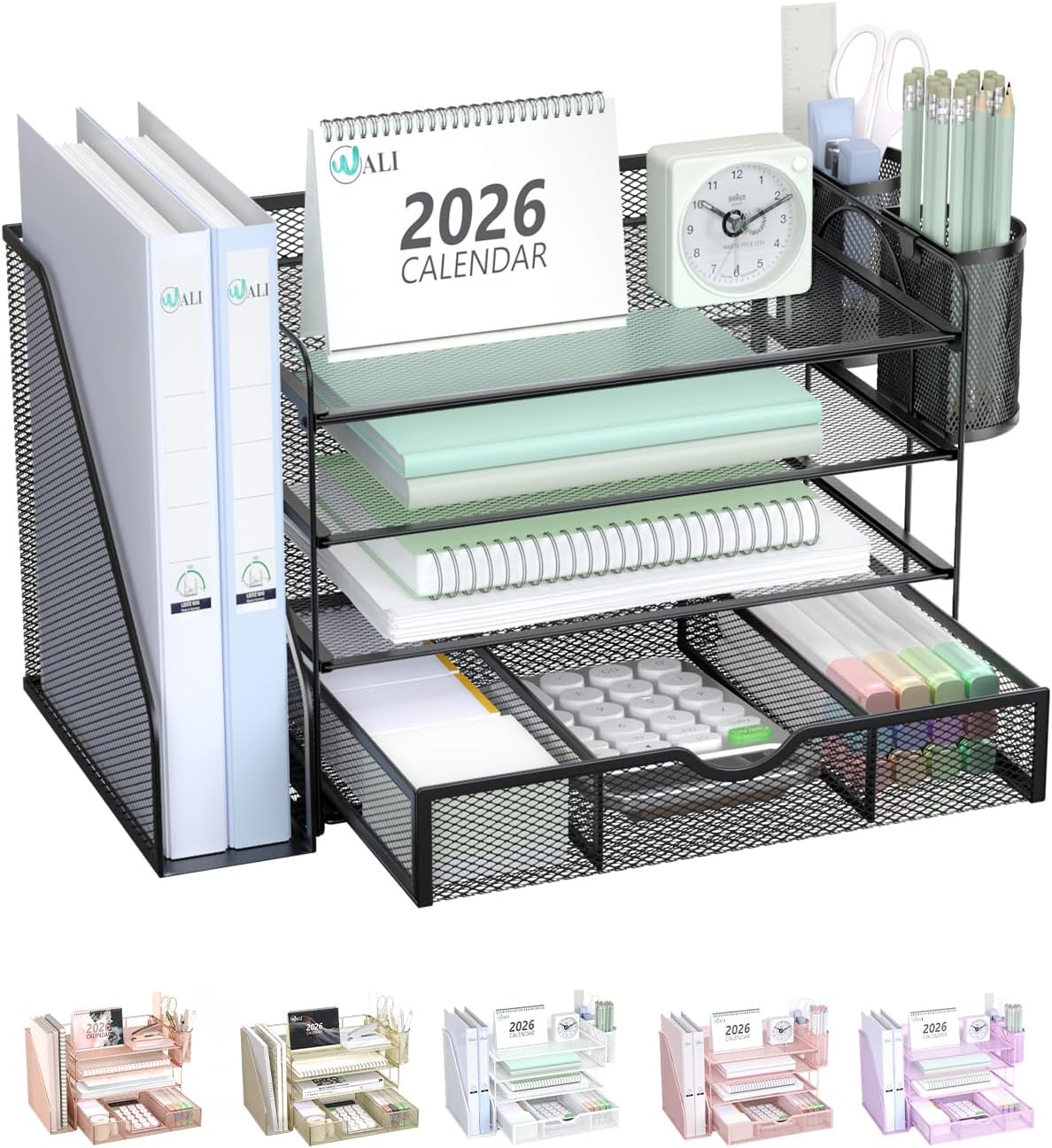
- A small organizer for pens and office supplies.
- A document holder, if you regularly reference paper materials.
- A lockable drawer or cabinet for authorized paper records.
- A dedicated charging area for work equipment.
Keep the setup simple. Every accessory should serve a purpose rather than create another thing to manage.
How Much Does a Home Office Setup for Medical Billing Cost?
Your budget will depend on what you already own. You can build a functional workspace gradually instead of buying everything at once.
| Item | Budget approach |
|---|---|
| Dual monitors | Start with two compatible, reliable displays; consider refurbished business monitors. |
| Privacy screen filter | Buy one sized specifically for your monitor. |
| Adjustable desk | Use a desk converter if replacing your desk isn’t practical. |
| Ergonomic mouse | Try a basic ergonomic model before investing in premium features. |
| Office chair | Prioritize adjustability and comfort over appearance. |
| Reference books | Purchase only the current materials relevant to your role. |
| Headset and accessories | Start with the equipment your work actually requires. |
Prices vary considerably by brand, specifications, and sales, so compare current prices before purchasing.
If you’re starting from scratch, prioritize your computer, a comfortable chair, dual monitors, and any security equipment required for your work. Add the adjustable desk and other accessories as your budget allows.
Frequently Asked Questions
Is a dual-monitor setup necessary for medical billing?
No, but it can make the work more efficient. Medical billing often requires comparing information across multiple systems, and dual monitors reduce the need to switch repeatedly between windows. A single monitor can still work if you have limited space or a smaller workload.
What size monitors are best for medical billing?
Two 24-inch monitors are a practical starting point for many home offices. Larger displays can be useful for spreadsheets and complex interfaces, but the best size depends on your desk space, viewing distance, and visual preferences.
Do remote medical billers need a privacy screen?
A privacy screen may be appropriate when your work involves confidential patient information, particularly in shared spaces. However, follow your employer’s or client’s security requirements. A filter alone does not protect information from every privacy or cybersecurity risk.
Are standing desks worth it for medical billers?
An adjustable desk can provide flexibility if you spend long periods working at a computer. You can alternate between sitting and standing based on comfort. A desk converter is an option if you want to try this arrangement without buying a new desk.
Which medical billing books should beginners buy?
Start with a current medical billing and reimbursement textbook that matches your training goals. Add coding manuals or specialty-specific resources only when they are relevant to your responsibilities. For current billing requirements, consult authoritative sources and payer guidance.
Can you work as a remote medical biller from a small home office?
Yes. A small desk, laptop or desktop computer, external monitor, comfortable chair, and reliable internet connection may be enough to get started. Prioritize a secure workspace and arrange your equipment to fit the room you have.
Final Thoughts: Build a Workspace That Supports Your Work
The best desk setup for a remote medical biller is one that makes your daily work more manageable without creating unnecessary expense.
If you’re upgrading an existing office, start with dual monitors, a comfortable mouse, and a workspace that protects confidential information. Then consider an adjustable desk, supportive chair, and relevant reference materials based on your needs.
You don’t need a complicated or expensive home office to work effectively. A few thoughtful choices can help you stay organized, navigate billing systems more comfortably, and create a workspace that supports your workday.
Start with one improvement: If you’re still working from a single screen, consider adding a second monitor first. It’s a practical upgrade that can make moving between billing software and supporting information much easier.
